How to Install IPTV on Firestick in Canada: Step-by-Step Setup
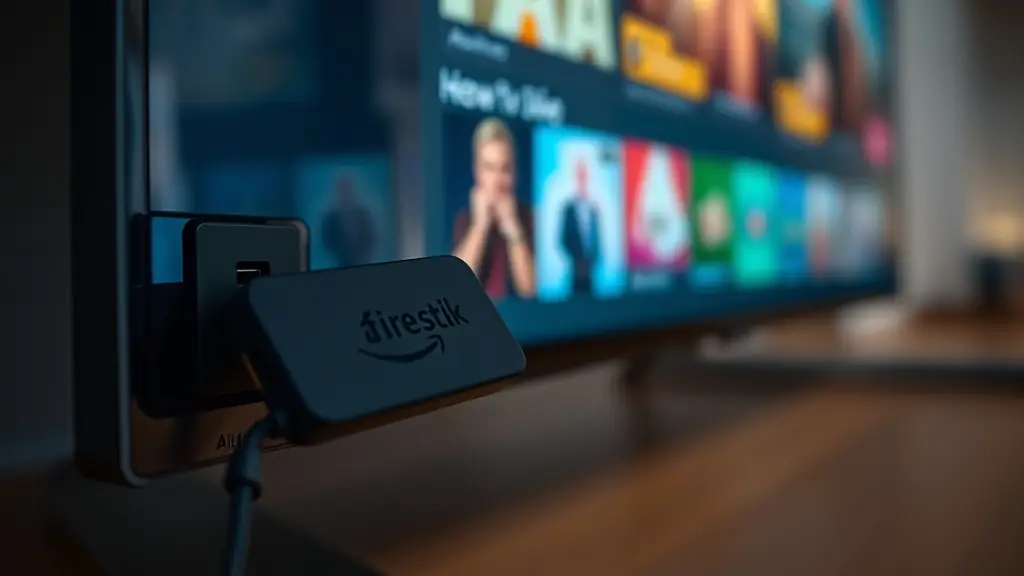
The Amazon Firestick is the most popular streaming device among Canadian IPTV users, and for good reason. It is affordable, compact, powerful enough to handle HD and 4K streams, and available at every Best Buy, Amazon.ca, and Walmart across the country. Whether you picked up a Firestick 4K, Firestick 4K Max, or the standard Fire TV Stick Lite, the setup process for IPTV is nearly identical.
This guide walks you through every step — from unboxing to watching your first live channel — with specific instructions tailored for Canadian viewers using CanadaIPTV.
What You Need Before You Start
Before touching your Firestick, make sure you have three things ready. First, a stable internet connection. A minimum of 25 Mbps is required for smooth HD streaming, and 50 Mbps or higher is recommended if you plan to watch in 4K or have multiple devices streaming simultaneously. Most urban Canadian ISPs — Bell Fibe, Rogers Ignite, Telus PureFibre, Shaw, Videotron — deliver well above this threshold on their standard plans. If you are in a rural area using Starlink or Xplornet, you should still be fine at HD quality.
Second, your IPTV subscription credentials. When you sign up with CanadaIPTV through our pricing page, you receive a username, password, and server URL (also called a portal or M3U link). Keep this information handy — you will need it during app setup.
Third, your Firestick should be connected to your TV, powered on, and updated to the latest Fire OS version. You can check for updates by navigating to Settings, then My Fire TV, then About, then Check for Updates.
Step 1: Enable Apps From Unknown Sources
Amazon does not allow sideloading apps by default. Since the best IPTV player apps are not available on the Amazon Appstore, you need to enable installation from unknown sources. Here is how.
Go to Settings on your Firestick home screen. Select My Fire TV, then Developer Options. On newer Firestick models running Fire OS 7 or later, you might see this listed under Settings, then My Fire TV, then Developer Options. If you do not see Developer Options at all, go to Settings, My Fire TV, About, and click on your device name seven times rapidly. This unlocks the developer menu.
Once inside Developer Options, find "Install unknown apps" or "Apps from Unknown Sources" and toggle it to ON. On newer firmware versions, you will need to enable this permission specifically for the Downloader app (which we install next). This is a one-time setting — you will not need to repeat it.
Step 2: Install the Downloader App
The Downloader app is your gateway to sideloading IPTV applications. It is a free, legitimate app available directly on the Amazon Appstore. From your Firestick home screen, use the search function (the magnifying glass icon) and type "Downloader." The app by AFTVnews should appear as the top result. Select it and click Download, then Open once installation finishes.
When Downloader opens for the first time, it will ask for permission to access files. Grant it. You will see a simple interface with a URL field. This is where you will enter the download link for your IPTV player app.
Step 3: Install Your IPTV Player App
You have several excellent choices for IPTV player apps on Firestick. The two most popular among Canadian users are IPTV Smarters Pro and TiviMate. We will cover both.
Option A: IPTV Smarters Pro
IPTV Smarters Pro is the most beginner-friendly option. It has a clean interface, built-in EPG (Electronic Program Guide), and handles M3U and Xtream Codes login formats. Open the Downloader app and enter the URL provided by your IPTV service for the Smarters APK. Tap Go. The file will download and you will be prompted to install it. Tap Install, then Open.
When Smarters opens, select "Login with Xtream Codes API." Enter the username, password, and server URL from your CanadaIPTV subscription. Give your playlist a name — something like "CanadaIPTV" — and hit Add User. The app will load your channel list, EPG data, and VOD library. This process takes 30 seconds to two minutes depending on your connection speed.
Once loaded, you will see categories on the left side: Live TV, Movies, Series, Catch-Up, and Multi-Screen. Navigate to Live TV and you will find all your channels organized by country and category. Canadian channels, including all TSN and Sportsnet feeds, will be listed under the Canada section. Check our full channel lineup to see everything included.
Option B: TiviMate
TiviMate is the preferred app for users who want a more traditional cable TV feel. Its interface mimics a set-top box EPG, showing a grid of channels and upcoming programming. The free version is functional, but TiviMate Premium (a one-time purchase of about $7 CAD) unlocks multiple playlist support, recording, and catch-up features.
Open Downloader and enter the TiviMate APK URL. Download, install, and open. On first launch, TiviMate asks you to add a playlist. Select Xtream Codes and enter your CanadaIPTV credentials. After loading, the full channel grid appears. Use the left and right buttons on your Firestick remote to browse the EPG timeline. Press the centre button to watch any channel.
TiviMate also supports grouping favourites, so you can create a custom list of your most-watched Canadian channels for quick access. Many users set up groups like "Hockey Night," "News," and "Kids" to keep things organized.
For a deeper comparison of these apps and others, read our guide on the best IPTV apps for Firestick.
Step 4: Configure Settings for Best Performance
After installing your player app, a few settings tweaks will significantly improve your experience. In IPTV Smarters, go to Settings and set the Player to VLC or ExoPlayer (ExoPlayer tends to handle HD Canadian sports streams more reliably on Firestick hardware). Enable "Auto-start on boot" if you want the app to launch when you turn on your Firestick.
In TiviMate, navigate to Settings, then Playback. Set the buffer size to Medium or High. Enable hardware acceleration. Under EPG settings, set the EPG update frequency to every 12 hours so your program guide stays current.
For both apps, make sure your Firestick display settings match your TV's capabilities. Go to Firestick Settings, then Display & Sounds, then Display. Set the resolution to 4K at 60Hz if your TV supports it, or 1080p at 60Hz otherwise. Mismatched display settings are the number one cause of unnecessary quality loss on Firestick IPTV setups.
Step 5: Optimize Your Internet Connection
Your Firestick connects to your home Wi-Fi by default, and for most Canadians on a 50 Mbps or faster plan, this works perfectly well. However, if you experience occasional buffering — especially during peak evening hours between 7 PM and 11 PM Eastern — consider these optimizations.
Use the 5 GHz Wi-Fi band instead of 2.4 GHz. The 5 GHz band delivers faster speeds with less interference from neighbouring networks, which matters in Canadian condos and apartment buildings where dozens of Wi-Fi networks overlap. On your Firestick, go to Settings, Network, and reconnect to your router's 5 GHz network (usually labelled with a "5G" suffix).
If Wi-Fi is still unreliable, pick up an Amazon Ethernet Adapter for Firestick. It costs about $20 on Amazon.ca and gives you a wired connection that eliminates Wi-Fi variability entirely. Plug an ethernet cable from your router into the adapter, and the adapter into your Firestick's USB port. The Firestick automatically switches to the wired connection.
For more tips on eliminating buffering, check our troubleshooting guide.
Troubleshooting Common Issues
Even with everything set up correctly, you might run into a few hiccups. Here are the most common issues Canadian Firestick IPTV users encounter and how to fix them.
"Could not connect to server" error: Double-check your credentials — username, password, and server URL. A single typo will prevent connection. Copy and paste from the email you received from CanadaIPTV if possible. If credentials are correct, the server might be undergoing brief maintenance. Wait five minutes and try again.
Channels load but show a black screen: This usually means the player codec is incompatible with the stream format. In Smarters, switch the player from the built-in player to VLC. In TiviMate, try switching between Hardware and Software decoding under Settings, Playback.
EPG not showing program information: The EPG data may not have loaded yet. In Smarters, go to Settings, then EPG, and tap "Refresh EPG." In TiviMate, go to Settings, EPG, then Update. Allow up to five minutes for the full guide data to populate across 19,000+ channels.
App crashes or freezes: Clear the app cache by going to Firestick Settings, Applications, Manage Installed Applications, selecting your IPTV app, and tapping Clear Cache. If the problem persists, uninstall and reinstall the app using Downloader.
Buffering on specific channels: Some channels run at higher bitrates than others. If a single channel buffers while others play fine, the issue is likely server-side and temporary. If multiple channels buffer, review the connection optimization steps above or reach out to our support team through the contact page.
Start Watching
Your Firestick is now a full-featured IPTV receiver capable of streaming over 19,000 live channels, complete with EPG guides, VOD libraries, and multi-device support. The entire setup takes less than fifteen minutes, and you will never look back at that $130 monthly cable bill.
If you have not subscribed yet, visit our pricing page to pick the plan that works for your household. Setup credentials are delivered instantly so you can be watching live TV within the hour.
Ready to Start Streaming?
Join thousands of Canadians enjoying premium IPTV with 19,000+ channels.
Related Articles
SetupHow to Install IPTV on Firestick in Canada: Step-by-Step Setup
Get IPTV running on your Amazon Firestick in under fifteen minutes with this complete Canadian setup walkthrough covering every step.
Read More: How to Install IPTV on Firestick in Canada: Step-by-Step Setup Setup
SetupBest IPTV Player Apps for Firestick, Android & Mac in Canada (2026)
Five IPTV apps tested on Firestick for Canadian users. Here is how Smarters, TiviMate, XCIPTV, Perfect Player, and Kodi compare in 2026.
Read More: Best IPTV Player Apps for Firestick, Android & Mac in Canada (2026)SetupBest IPTV Player Apps for Firestick, Android & Mac in Canada (2026)
Five IPTV apps tested on Firestick for Canadian users. Here is how Smarters, TiviMate, XCIPTV, Perfect Player, and Kodi compare in 2026.
Read More: Best IPTV Player Apps for Firestick, Android & Mac in Canada (2026)