How to Install IPTV on Samsung & LG Smart TV in Canada
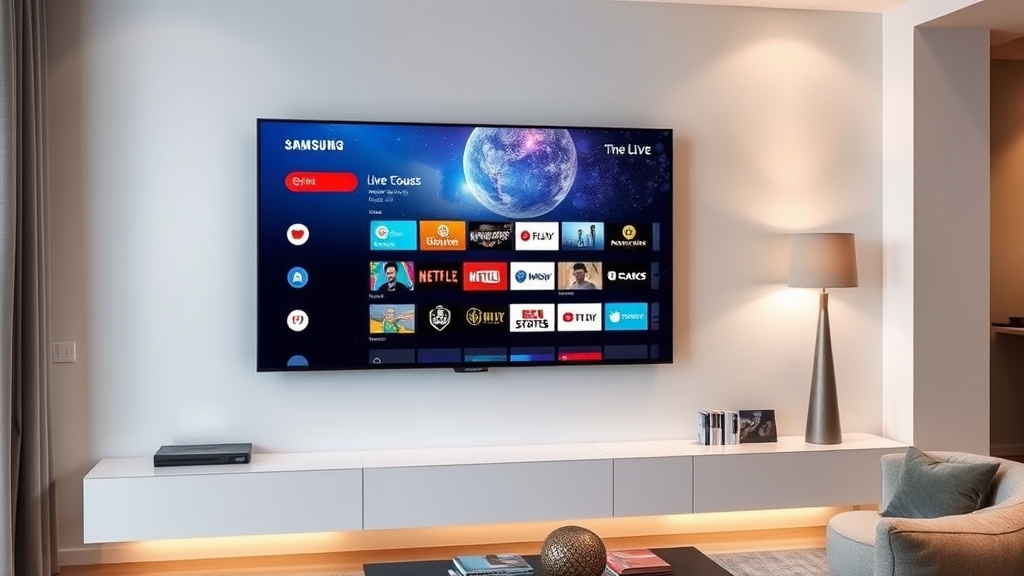
If you own a Samsung or LG Smart TV, you can run IPTV directly on your television without any external streaming device. No Firestick, no Android box, no extra HDMI cables — just your TV, your remote, and your IPTV subscription. The setup process differs between Samsung's Tizen OS and LG's webOS, but both are straightforward once you know which apps to use and how to activate them.
Which IPTV Apps Work on Smart TVs?
Samsung and LG Smart TVs do not support Android apps like IPTV Smarters Pro or TiviMate. Instead, they run their own operating systems — Samsung uses Tizen and LG uses webOS. Both platforms have dedicated IPTV apps available through their respective app stores.
The three most popular IPTV apps for Smart TVs are Smart IPTV (commonly called SIPTV), SET IPTV, and NET IPTV. All three work on both Samsung and LG TVs, support M3U playlists and Xtream Codes, and provide EPG functionality. They are paid apps (typically a one-time fee of $5 to $8), but the convenience of running IPTV natively on your TV is well worth it.
Setting Up Smart IPTV (SIPTV)
Smart IPTV is the most established option and the one most Canadian IPTV providers recommend. Here is how to install and configure it.
On your Samsung TV, open the Samsung App Store (or Apps section) from the home screen. Search for "Smart IPTV" and install it. On LG TVs, open the LG Content Store and search for the same app. Once installed, open Smart IPTV. The app will display your TV's MAC address on screen — this is a unique identifier for your television. Write it down or take a photo.
Now switch to your computer or phone and go to the Smart IPTV activation website (siptv.app/mylist). Enter your TV's MAC address and your M3U playlist URL (provided by your IPTV service). If your provider uses Xtream Codes, you can construct the M3U URL using this format: http://yourserver.com:port/get.php?username=YOURUSERNAME&password=YOURPASSWORD&type=m3u_plus&output=ts
Click Send and wait for the confirmation. Go back to your TV, restart the Smart IPTV app (close it fully and reopen), and your channels should load. The first load may take a minute or two depending on the size of your channel list.
Setting Up SET IPTV
SET IPTV is a newer alternative that some users prefer for its cleaner interface and faster channel loading. The setup follows a similar pattern.
Install SET IPTV from the Samsung App Store or LG Content Store. Open the app and note your TV's MAC address displayed on screen. Visit the SET IPTV portal website from your computer (setiptv.com). Enter your MAC address and your M3U playlist URL or Xtream Codes credentials. Submit the activation, return to your TV, and restart the app.
SET IPTV offers a 7-day free trial, after which it requires a one-time activation fee. The app supports EPG data, channel favourites, and category-based browsing. Its interface is particularly well-suited to navigating large channel lists using a standard TV remote.
Setting Up NET IPTV
NET IPTV rounds out the top three options. Install it from your TV's app store, note the MAC address, and activate via the NET IPTV website (netiptv.eu). The process mirrors the other two apps — enter your MAC address and playlist URL, submit, and restart the app on your TV.
NET IPTV supports multiple playlists, which is useful if you have more than one IPTV subscription or want to keep different content libraries separate. It also has solid EPG integration and a straightforward category system.
Samsung Tizen Tips
Samsung Smart TVs running Tizen have a few quirks worth knowing about. First, older Samsung TVs (pre-2017) may not have access to all IPTV apps in the app store. If you cannot find Smart IPTV or SET IPTV, your TV model may not be supported — in this case, an Amazon Firestick is your best alternative.
Second, Samsung TVs sometimes cache app data aggressively. If your channel list does not update after you make changes through the activation portal, try clearing the app cache. Go to Settings, then Apps, find your IPTV app, and select Clear Cache. Restart the app and it should pull the latest playlist.
Third, for the best picture quality, make sure your Samsung TV's picture mode is set appropriately for the content. Movie or Cinema mode provides the most accurate colours for entertainment, while Sports mode enhances motion handling for live sports. You can switch modes quickly using the TV's settings menu.
LG webOS Tips
LG's webOS is generally smoother for IPTV apps, but it has its own considerations. The LG Content Store is region-locked, meaning some apps may not appear if your TV's region is set incorrectly. If you cannot find an IPTV app, go to Settings, then General, then Location, and make sure it is set to Canada.
LG TVs also have a built-in media player that can handle M3U files directly. If you prefer not to install a third-party app, you can load an M3U playlist onto a USB drive, plug it into your TV, and open it with the built-in player. However, this method lacks EPG support and is less convenient for daily use than a dedicated IPTV app.
For LG TVs with the Magic Remote, navigation through IPTV apps is particularly smooth. The pointer-style control makes browsing through channel categories and the EPG grid feel natural and fast.
Portal URL Setup (MAG Emulation)
Some IPTV providers use a portal URL system instead of or in addition to M3U playlists. This is common with providers that support MAG set-top boxes. Smart IPTV, SET IPTV, and NET IPTV all support portal URL input.
In your IPTV app settings, look for the option to add a portal or Stalker portal. Enter the portal URL provided by your service. Some providers also require a separate MAC address registration — they will ask you to provide your TV's MAC address so they can whitelist it on their server. Once the portal is linked, you will see a provider-branded interface with organized channel categories.
Optimizing Your Smart TV for IPTV
A few settings adjustments can improve your IPTV experience significantly. Connect your TV via ethernet cable if possible — Smart TVs have notoriously inconsistent Wi-Fi performance, and a wired connection eliminates buffering caused by wireless interference. If Wi-Fi is your only option, position your router within clear line of sight of the TV and use the 5GHz band.
Disable any energy-saving modes that throttle the TV's processor or network connection. These modes can cause stuttering during live streams. On Samsung TVs, check Settings then General then Eco Solution. On LG TVs, look under Settings then General then Energy Saving.
Finally, keep your TV's firmware updated. Both Samsung and LG push regular updates that improve app compatibility and network performance. Set your TV to auto-update or check manually every few weeks.
For more setup options across other devices, visit our installation guide. And if you are still deciding on a plan, check our pricing page to find the right subscription for your household.
Ready to Start Streaming?
Join thousands of Canadians enjoying premium IPTV with 19,000+ channels.
Related Articles
 Setup
SetupHow to Set Up IPTV on Amazon Firestick — Step by Step (2026)
Complete walkthrough for installing IPTV Smarters Pro and TiviMate on your Amazon Firestick. From enabling unknown sources to watching live TV in minutes.
Read More Setup
SetupBest IPTV Apps for Android, iPhone & iPad in Canada — 2026
Honest comparison of the top five IPTV apps for Canadian users in 2026 — IPTV Smarters Pro, TiviMate, GSE Smart IPTV, Perfect Player, and XCIPTV with pros, cons, and recommendations.
Read More Guides
IPTV Troubleshooting: Fix Buffering, Freezing & Connection Issues
Buffering and freezing can ruin a good IPTV experience. Here is how to diagnose and fix the most common IPTV streaming issues in Canada.
Read More