How to Set Up IPTV on Amazon Firestick — Step by Step (2026)
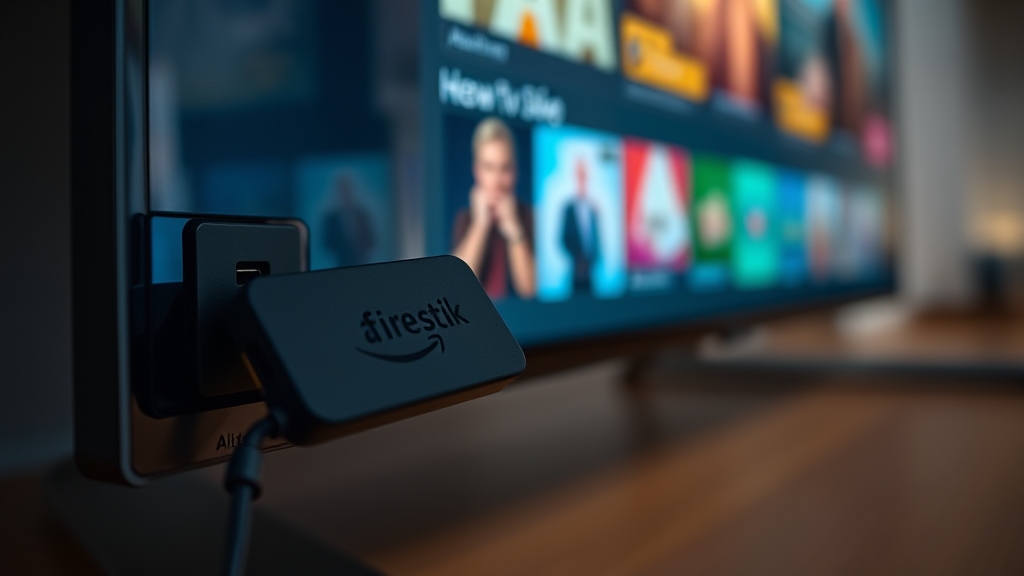
The Amazon Firestick remains the most popular streaming device for IPTV in Canada, and for good reason. It is affordable, compact, powerful enough for HD and 4K streaming, and supported by virtually every IPTV player on the market. Whether you just picked up a Firestick 4K Max during a Prime Day sale or you have an older generation stick collecting dust, this guide walks you through setting up IPTV from scratch.
What You Need
Before diving in, gather these three things. First, an Amazon Firestick — any generation works, though the Firestick 4K or 4K Max delivers the best performance for live TV. Second, a reliable internet connection with at least 25 Mbps for HD streaming or 50 Mbps if you plan on watching 4K content. Third, your IPTV subscription credentials, which you will receive after choosing a plan. These typically include a server URL, username, and password, or alternatively an M3U playlist URL.
Make sure your Firestick is plugged in, connected to your Wi-Fi network, and signed into your Amazon account. If this is a brand-new Firestick, run through the initial setup wizard first — it takes about five minutes.
Step 1 — Enable Installation from Unknown Sources
Amazon's Firestick only allows app installations from the Amazon Appstore by default. Since the best IPTV players are sideloaded (installed from outside the store), you need to flip one setting.
From the Firestick home screen, navigate to Settings using the gear icon at the top. Select My Fire TV, then Developer Options. If you do not see Developer Options, go to Settings, then My Fire TV, then About, and click on your Fire TV Stick name seven times rapidly. This unlocks Developer Options the same way you would on an Android phone.
Inside Developer Options, find Install Unknown Apps (on newer Firestick firmware) or Apps from Unknown Sources (on older firmware). Turn it on. You will see a warning prompt — confirm it. This is a standard Android setting and is completely safe. You are simply telling the Firestick that you want to install apps from sources other than Amazon.
Step 2 — Install the Downloader App
The Downloader app is your gateway to sideloading IPTV players. It is free and available directly from the Amazon Appstore.
Go back to the Firestick home screen and select the search icon (magnifying glass). Type "Downloader" and it will appear in the results — look for the orange icon by AFTVnews. Select it, click Get or Download, and wait for the installation. Open the app once it is installed and grant it file access permission when prompted.
Step 3 — Install IPTV Smarters Pro
IPTV Smarters Pro is the most widely used IPTV player among Canadian users. It has a clean interface, supports Xtream Codes login, handles EPG data well, and works reliably on all Firestick models.
Open the Downloader app. In the URL field, type the download link provided by your IPTV service for the Smarters Pro APK. If your provider did not give you a direct link, you can find the official IPTV Smarters Pro APK through a quick web search — type the URL carefully using the Firestick remote. Press Go and the APK file will download. Once the download finishes, the Firestick will prompt you to install. Tap Install and wait for it to complete. Select Done (not Open) so you can return to Downloader and delete the APK file to save storage space.
Now open IPTV Smarters Pro from your Apps row. Select Xtream Codes API as your login method. Enter the server URL, your username, and your password exactly as your IPTV provider gave them to you. Pay close attention to capitalization and any special characters. Tap Add User and the app will connect to your IPTV server and load your channel list.
Step 4 — Install TiviMate (Alternative Player)
TiviMate is the other top-tier IPTV player, and many users prefer it for its sleek TV-optimized interface and powerful EPG grid. The free version is fully functional, while TiviMate Premium adds features like recording and multiple playlist support.
The installation process is the same as Smarters Pro. Open Downloader, enter the TiviMate APK URL (provided by your service or found on the official TiviMate site), download it, and install.
When you open TiviMate for the first time, it will ask you to add a playlist. Select Xtream Codes and enter your server URL, username, and password. TiviMate will sync your channels and EPG data. The interface presents a familiar TV guide grid that feels like a modern cable box — channels on the left, program schedule across the top.
Step 5 — Configure and Customize
Once your player is set up, spend a few minutes customizing the experience. In either IPTV Smarters Pro or TiviMate, you can favourite channels by long-pressing on them. Create a favourites group for your most-watched Canadian channels — TSN 1 through 5, Sportsnet feeds, CBC, CTV, and your preferred news and entertainment channels. Check out the full channel list to see what is available.
Set up the EPG refresh interval. An automatic refresh every 12 to 24 hours keeps your program guide current without using excessive data. In TiviMate, go to Settings, then EPG, and configure the update schedule. In Smarters Pro, the EPG typically refreshes automatically when you launch the app.
Adjust the video player settings. Both apps allow you to switch between their built-in player and external players like MX Player or VLC. The built-in player works well for most content, but if you experience issues with specific channels, switching to an external player can help.
Troubleshooting Common Issues
If the app says "unable to connect" or "server error," double-check your credentials. The most common issue is a typo in the server URL or password. Copy-pasting is tricky on a Firestick remote, so take your time.
If channels load but video buffers frequently, start by checking your internet speed. Run a speed test on the Firestick (you can download a speed test app from the Amazon Appstore). If your speed is below 25 Mbps, try moving your router closer, switching to the 5GHz Wi-Fi band, or ideally connecting via ethernet using an OTG adapter and ethernet cable — this makes a noticeable difference.
If certain channels show a black screen while others work fine, it is likely a temporary server-side issue. Try the channel again in a few minutes or switch to a backup server if your provider offers one. For more detailed troubleshooting, check our buffering fix guide.
Final Tips for Canadian Firestick Users
Keep your Firestick updated. Amazon pushes firmware updates regularly, and staying current ensures compatibility with the latest IPTV apps. Similarly, update your IPTV player app when new versions are released — developers frequently improve performance and fix bugs.
If storage space becomes an issue (the base Firestick has limited internal storage), clear the cache of unused apps and delete downloaded APK files after installation. For a more detailed look at setting up IPTV across different devices, visit our installation guide.
Ready to Start Streaming?
Join thousands of Canadians enjoying premium IPTV with 19,000+ channels.
Related Articles
 Setup
SetupHow to Install IPTV on Samsung & LG Smart TV in Canada
Set up IPTV directly on your Samsung or LG Smart TV using Smart IPTV, SET IPTV, or NET IPTV. No external device needed — just your TV and your subscription.
Read More Setup
SetupBest IPTV Apps for Android, iPhone & iPad in Canada — 2026
Honest comparison of the top five IPTV apps for Canadian users in 2026 — IPTV Smarters Pro, TiviMate, GSE Smart IPTV, Perfect Player, and XCIPTV with pros, cons, and recommendations.
Read More Guides
IPTV Troubleshooting: Fix Buffering, Freezing & Connection Issues
Buffering and freezing can ruin a good IPTV experience. Here is how to diagnose and fix the most common IPTV streaming issues in Canada.
Read More